Total Hunter is a desktop program for Windows PC. It does not run on mobile devices, Mac or Linux.
◆
What is Total Hunter
Total Hunter — Total Hunter is a desktop assistant bot for automating routine tasks in Total Battle. The app handles the mindless searching and clicking, saving your time:
🔍
Exchange Hunting
Two modes. "Snake" scans coastlines and, once it finds a mercenary market, plays a sound alert and stops so you have time to buy troops. "Scanner 2.0" captures the map fast while a neural network processes frames in the background; finds go to the SWARM.
🏆
Crypt Farming
The bot recognizes the crypt types you need (Common, Rare, Epic) and sends Carter to collect automatically, applying march speed-ups on its own.
For clans, the bot collects chests from clan gifts, and the website keeps the clan table and the Ancient calculator (see sections below). The program works on top of your game window (browser or client), imitating the clicks and pauses of a real player.
🧠
How the Bot Sees the Game
Smart Coastline Scouting
To avoid wandering the map blindly, the bot uses the "Coastal Snake" algorithm. It mimics the logic of a live scout:
1
Terrain Analysis
Reads the mini-map in real-time, identifying where water ends and land begins.
2
Movement Vector
Builds a path strictly perpendicular to the coast, so it never skips a bay.
3
Intelligent Phases
First moves toward the target (Homing), then deep-scans the land (Diving), and safely returns to shore (Returning).
4
Smoothing (EMA)
Smooths the camera movements, eliminating jitter and imitating natural mouse scrolling.
Thanks to initial calibration, the system adapts perfectly to any monitor resolution.
Neural Network Vision (YOLO)
Exchange Detector
Recognizes a mercenary market against any landscape background, even if partially obscured.
Crypt Detector
Tells an Epic crypt from a Common one, ignoring UI clutter and game interface noise.
The moment the neural network locks onto a target, the bot takes over, clicks the object, and runs its built-in scenario.
March Automation
1
Detection
Finds the crypt in the search menu and clicks on it.
2
Timing Calc
Calculates march travel time based on distance and your chosen number of speed-ups.
3
Wait Cycle
Waits the exact time (there + back) with a small random buffer, to guarantee Carter's return.
4
List Reset
When the crypt list runs out, the bot refreshes it via the "Arena" tab and continues farming.
💡 Important: for Crypt farming, zoom the map in to maximum. For Exchange hunting, zoom all the way out and start at the land/water boundary.
💻
System Requirements
OS
Windows 10 / 11 (64-bit)
Resolution
1920×1080 (Full HD) — recommended for ideal click accuracy
Platform
Chrome, Firefox or the official Total Battle PC client
RAM
4 GB or more
Internet
Stable connection (account and diamond balance checks; the neural network runs on your PC)
Account
Any active in-game profile
⬇
Quick Start: Installation
From sign-up to first launch takes no more than 5 minutes. No complex Python setup — everything is already bundled inside.
1
Sign Up
Log in at total-hunter.com using your Google account.
2
Free Trial
In the bot, click "Get 300 trials" — you get 300 diamonds to test all bot features.
Trial is issued once per unique device (HWID).
3
Download
Download TotalHunter.zip from the website and extract it to any folder. Do not run the program from inside the archive.
4
Windows protection
The program is not digitally signed, so Windows may block it. Add the program folder to Windows Defender exclusions. On Windows 11, if you see "An Application Control policy has blocked this file", turn off Smart App Control (it can only be turned back on after reinstalling Windows). More details on the Download page.
5
Launch
Open TotalHunter.exe from the extracted folder. No installation required.
6
Log In to Bot
Click "Sign in with Google" inside the app (use the same account as the website).
7
First Setup
Before starting, the bot will ask you to complete Calibration. This is required!
🎯
Calibration: Setting the Bot's "Eyes" (Required)
Why is this needed? Everyone has different monitors, window scales, and browsers. To make sure the bot doesn't miss buttons, you need to "show" it your game interface coordinates once. Open the game the way you plan to play, and set two points.
Point A
Mini-map Center
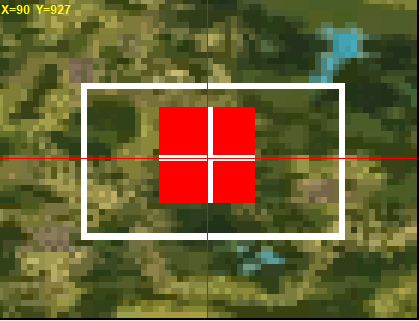
Zoom the mini-map out to minimum (top-right corner). In the bot, click "Set Point A" and click exactly in the center of the mini-map rectangle.
Point B
Silver "+" button
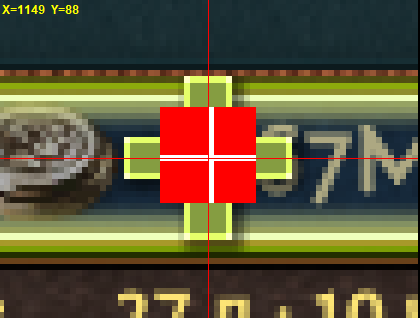
Hover over the Silver panel at the top of the screen until the green plus appears. In the bot, click "Set Point B" and click exactly on that plus sign.
Steps
1
Prepare your window
Open the game and set the window to the size you'll use (fullscreen recommended).
2
Open Calibration
Switch to the CALIBRATION tab in the Total Hunter app.
3
Choose a profile
At the top of the tab pick a profile (Client, Browser 1 or Browser 2).
4
Set Points A and B
In the target list click "1. Point A" and mark the mini-map center, then "2. Point B" and the Silver plus sign.
5
Other targets
Click targets 3–13 one by one and use the arrows below the list to line up the bot's aim with the game buttons.
6
Save
Click "Save" at the top of the tab. Next time the bot will load these settings automatically.
💡 3 independent profile slots. You can play from a browser and from the official client. Save a separate calibration, slider settings, and click tuning for each. Switching between them takes one second.
⚡
Operating Modes
🔍
Exchange Hunting
10 diamonds / find
How it works: "Snake" continuously scans coastlines by moving the map; "Scanner 2.0" captures the map fast and processes frames with a neural network in the background.
Result: Once it spots an exchange — it stops and plays a loud sound. You buy the mercenaries yourself.
Settings: See "Fine-Tuning the Bot" below for details.
🏆
Crypt Farming
1 diamond / dispatch
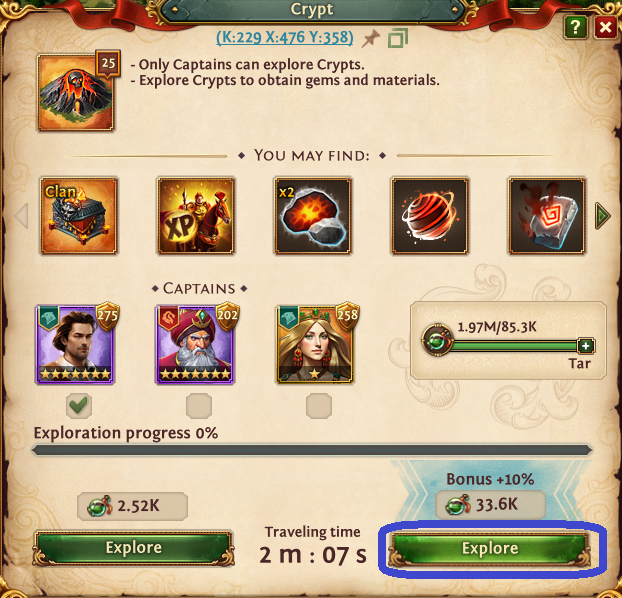
How it works: Finds crypts in the search menu, clicks their coordinates, presses "Speed Up", and sends Carter.
Smart cycle: The bot calculates flight time on its own. It waits for Carter and immediately sends him to the next crypt.
Full control: You set the max march range (in seconds), the number of speed-ups, and auto-stop by crypt count or time.
Emergency Stop:ESC press the ESC key on your keyboard. The bot will freeze instantly.
⚙️
How the Bot Sends Carter
In Crypts mode the bot sends Carter and presses the speed-ups itself — you don't have to do it by hand. Click accuracy on these buttons is set up in the Calibration tab.
How the bot automates the routine
Waits for Carter
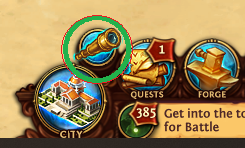
The bot scans the "Watchtower" icon. As soon as it changes color — Carter is home.
Sends him out again
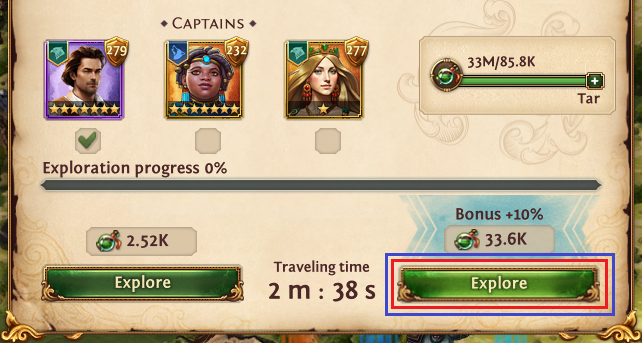
Opens the captain window and clicks "Explore". Carter immediately flies out again.
Catches the march
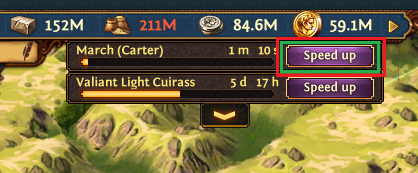
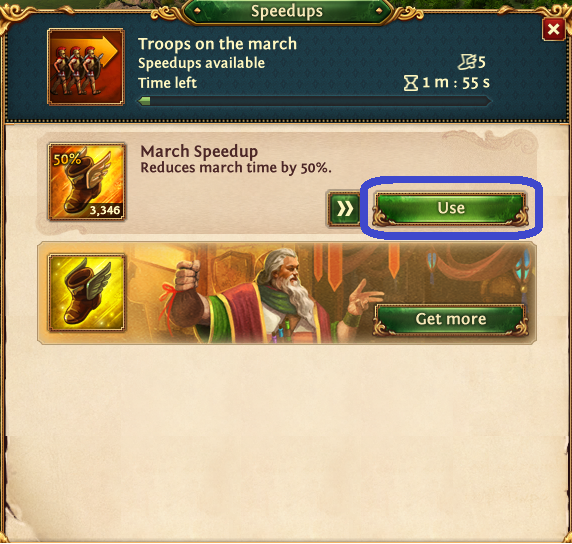
In the active march list the bot finds Carter's bar and presses "Speed up".
Applies boosts
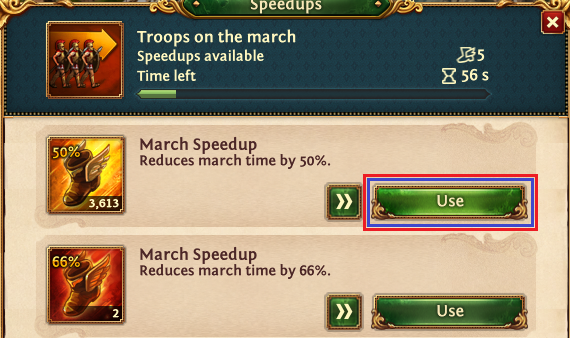
Automatically picks the most efficient available accelerator and clicks "Use".
💡 Crypts, Chests and "Scanner 2.0" never run at the same time — the bot makes sure the modes don't interfere with each other.
📦
Chests: clan tracking
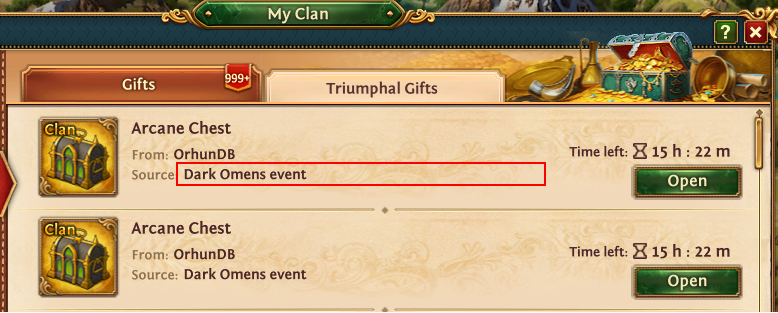
The bot opens clan gifts in the game and records every chest: who earned it and which event it came from. The site turns these records into a season table: points, quotas, player ranking and a public page for the whole clan.
Step 1. Collect with the bot
Auto-open
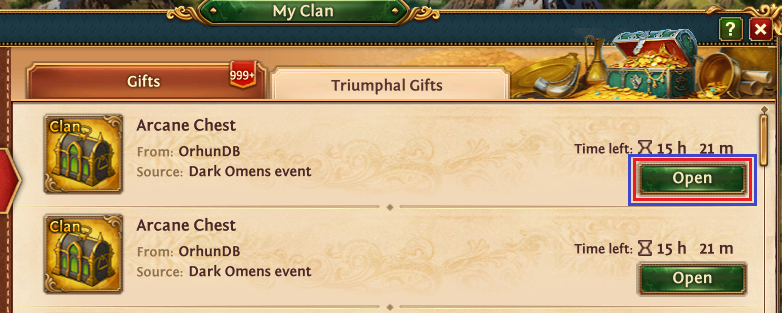
The bot goes to the clan gifts tab and opens all available chests one by one.
Nickname
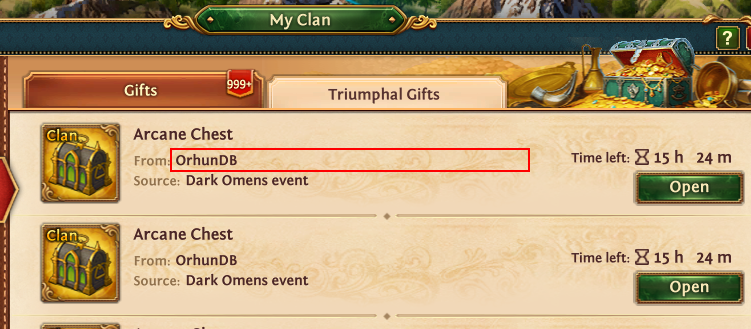
Reads the "From:" field — which clan member earned the chest.
Chest type
Reads the "Source:" field — which event the chest came from; points depend on it.
How to start collecting
1
Choose the clan
In the bot "Chests" tab pick a saved "kingdom · clan" pair from the list, or type the kingdom number and clan name and save it with 💾. Chests go to the clan selected at the moment you press START.
2
START
Open the clan gifts tab in the game and press START. The bot collects chests to the end of the list. Collected chests are stored on your PC until they are sent.
3
Sending
"SEND TO SERVER" sends everything collected as one batch — 1 diamond per 100 chests (rounded to the nearest hundred: 149 — 1, 150 — 2; minimum 1 diamond per send). With "Auto-send" on, the bot sends by itself when the list ends or 5000 chests are collected. After a successful send the records are removed from the PC.
Step 2. Set up on the site (Dashboard → Chests)
1
The clan appears by itself
After the first send from the bot the clan roster appears in the dashboard of whoever sent it: that person is its owner. There is always one owner: only their bot fills the roster.
2
Managers
You can run a roster together. The owner presses "Invite a manager" and sends the code to a clanmate, who enters it in their dashboard under "Were you invited to help run a clan roster?". A manager edits players (correct name, rank, troops, Hero), chest points and accounting, presets and the Ancient tab, views history and downloads statistics. The season, season quotas, closing the season early, deleting the roster and the list of managers stay with the owner. Chests from a manager's bot go to their own roster, not yours. To remove a manager press "Remove"; they can also press "Stop being a manager". The owner and managers see each other only by in-game nickname (set in Profile); nobody sees anyone's email.
3
Preset — ready-made points
A preset is a ready template of chest prices in points for a clan level (T5–T9), so you do not have to price dozens of chests by hand. T9 is the working setup of an experienced clan, T5–T8 is a basic crypt set. Pick a preset and press "Load Preset": known chests get their points, missing ones are added as "Counted". The preset does not change the "Accounting" of chests you already set. Then adjust points to your clan rules and press "Save".
4
Points and "Accounting" per chest
For each chest type set points and choose "Accounting": "Not counted" — hidden, no points; "Counted" — gives points; "Quota 1–3" — gives points and is also counted in its quota column.
5
Season quotas
Up to 3 quotas at once, e.g. "Epic Crypts" and "EMC" (Epic Monster Chests). Each has a name and a target: how many chests of that kind a player must collect per season.
6
Players
"Players" tab: if the bot misread a nickname, set the "Correct Name" — all variants merge into one player. You can also add a player manually and fill in rank, troops and Hero level.
7
Season
Set the clan time zone, period start and end and the points target, then press "Save". Dates and targets can be changed after the start — the table recalculates.
8
Public page
The clan gets its own link like total-hunter.com/c/450/hot. Members open it from a phone without registering: sort by any column, Russian/English. With the "Troops" button players fill in their rank, troops and Hero level themselves.
9
End of season
On the end date the season moves to "History" automatically (kept for 90 days) and the next season of the same length starts. To finish earlier use "Close Season Early". "Download statistics (CSV)" exports all seasons for analysis in Excel/Google Sheets.
Example: points and quotas
Chest setup in the dashboard:
Chest
Points
Accounting
Epic Crypt 30
80
Quota 1 "Epic Crypts"
Rare Crypt 30
65
Counted
Epic Basilisk
30
Quota 2 "EMC"
Common Crypt 25
5
Not counted
The player collected: 3 × Epic Crypt 30, 2 × Rare Crypt 30, 4 × Epic Basilisk, 10 × Common Crypt 25.
Player
Points
Epic Crypts /20
EMC /50
Player
490
3
4
Points: 3×80 + 2×65 + 4×30 = 490. Common Crypt 25 is "Not counted" — no points and not shown in the table. Quota columns count chests, not points: Epic Crypts — 3 of 20, EMC — 4 of 50.
Details
•
Target (points)
The nickname colour shows progress: below target — from red to yellow, target reached — the name shimmers, far above target — "legendary" colour and larger font. Ranking is by points.
•
A quota counts chests, not points
Points are the sum over all counted chests. A quota is a separate counter of one kind of chest. One chest can give points and count towards a quota at the same time.
•
Personal quota by Hero level
A quota can have the "Personal target by Hero level" switch turned on (for EMC): the higher the player Hero level, the more chests are expected. Targets by level are set on the "Personal player norms" tab, and the clan sees the final table on the public page in the "EMC quota" tab. The quota is for a 2-week season. If a player has no Hero level set, the target uses Hero 400 and is marked "?". Values are preliminary and refined from statistics.
•
The bot counts every chest
"Not counted" only hides a chest from the table — the data is kept. If you turn counting on later, those chests appear in the season.
•
Season follows collection time
A chest belongs to the season in which the bot collected it. To get everything into a season, collect and send before it ends.
💡 All history is kept: closed seasons stay in the archive for 90 days.
🐲
Ancient: Damage Quota Calculator
A web tool for clan leaders. Lets you fairly distribute the required Ancient damage quota, accounting for each player's actual strength (troops: Guards, Specialists, or Monsters).
How it works (website only)
1
Enter parameters
The leader enters the total damage required and picks a distribution method (by rank or by army strength).
2
Fair calculation
The algorithm weights each player's troop strength. Players with tier-9 armies get a higher quota than newcomers with tier-6.
3
Monitoring
The leader gets a color-coded table: instantly see who met their quota and who's dragging the clan down.
4
Transparency
Players can check their personal damage quota on the clan's public page.
💡 This module does not require downloading the bot. Everything works in the browser inside your Dashboard.
🐝
SWARM: Exchange Radar
SWARM is a shared player network. Your bot finds exchanges and anonymously submits their coordinates to the common pool. In return, you see coordinates found by others. Works on the principle of "help others — others help you".
SWARM Time Economy
For every map scan session you earn access time at a 1.5× rate. This time is spent when you request fresh coordinates from the pool.
⏱30 sec of your scanning→ +45 sec SWARM balance
📍Pressed "Refresh Pool"→ −60 sec SWARM balance
🔊New exchange appeared→ bot plays a sound alert
Anti-Abuse Protection
📅
Active during event only
Exchanges appear on the map only during "Trade Routes". Outside the event there are no exchanges to scan — SWARM balance is not earned.
🗺
AFK protection
The bot analyzes mini-map pixels. If it's not moving (you're standing still) — no time is earned. No free rides — you have to actually fly and search.
How to Join
1
Activate
Enable the SWARM toggle in the matching bot tab.
2
Start searching
Press START for Exchange hunting. Your bot will begin contributing to the shared pool.
3
Check the pool
Press "Refresh Pool". You'll see a list of fresh coordinates from other players (Kingdom, X/Y, fill level).
4
React
Heard the sound — refresh the pool immediately and jump to the coordinates. Exchanges don't last long.
💡 If a pool exchange fill level is above 90% — it's most likely already been cleared. Only jump to "fresh" spots.
⚙️
Fine-Tuning the Bot
Settings: Exchange Hunting
Main rule: "Scan Frequency" must be less than or equal to "Speed (sec/step)". Otherwise the neural network simply won't have time to "look at" the frame between camera jumps.
Detection Accuracy
Range
0.1 – 0.9
Optimal
0.65–0.75
How confident the bot must be that it sees an exchange. Too low — it will beep at every rock. Too high — it will miss an exchange in the fog.
Scan Frequency
Range
0.1 – 5.0 s
Optimal
0.4–0.8 s
How often the neural network takes a "screenshot" of the screen. Lower = faster reaction, but higher PC load.
Joystick Step
Range
10 – 20 px
Optimal
13–16
How many pixels the bot moves the mini-map per step. Bigger step = faster travel, smaller = more thorough search.
Speed (sec/step)
Range
0.5 – 5.0 s
Optimal
1.5–2.5 s
Pause after each joystick step. If you have a slow connection and the map doesn't load in time — increase this.
Dive Depth
Range
1 – 10 (Scanner 2.0: up to 50)
Optimal
3–6
How many screens deep the bot goes inland before turning back.
Ocean/Land Boundary
Range
1 – 15 %
Optimal
3–5 %
What percentage of land must be on the radar for the bot to recognize it as a coastline rather than open ocean.
Min Water Body
Range
100 – 2000 px
Optimal
≈ 500
Helps the bot tell large seas apart from small inland puddles.
How long the bot remembers it has already visited a zone. Prevents going in circles.
Return Delta
Range
0 – 20 px
Optimal
3–8 px
Offset correction. If the bot consistently returns left of the target on the way back — add a few pixels here.
Nav Agility
Range
10 – 100 %
Optimal
40–60 %
How sharply the bot changes direction while following coastline curves.
Settings: Crypt Farming
All slider changes are instantly saved to the current Profile (Browser 1, Client, etc.).
Detection Accuracy
Range
0.1 – 0.9
Optimal
0.65–0.75
Confidence threshold for recognizing crypts in the menu.
March Acceleration
Range
0 – 5
Optimal
2–3
How many times the bot clicks "Speed up march" before dispatching. Make sure you have enough accelerators in stock.
Break Between Crypts
Range
3 – 300 s
Optimal
8–15 s
Rest time after Carter has returned home.
March Range
Range
10 – 600 s
Optimal
120 s
Critical parameter. The bot won't go to a crypt if it takes longer than this to get there.
Stop (count)
Range
Off / 10–200
Optimal
as needed
Automatically stops collection after N crypts have been collected this session.
Stop (hours)
Range
Off / 1–12 h
Optimal
as needed
Automatically stops collection N hours after the session started.
Reset to Start
Range
Off / 10–60 min
Optimal
20 min
Over a long session the crypt list gradually drifts down, increasing march distance. This periodically resets the list back to the top (the same "Arena x2" trick used at the normal end of the list) — independently of it.
Detection Frequency
Range
0.0 – 4.0 s
Optimal
0.8–1.5 s
Speed at which the bot scrolls through the crypt search menu.
Click Tuning (X/Y)
Range
X + Y axes
Optimal
1–5 px
IMPORTANT: If the bot slightly misses buttons (due to font or Windows scaling quirks), you can manually shift its "aim" horizontally (X) and vertically (Y). Configured in the CALIBRATION tab: click the target in the list and move the aim with the arrows.
↳ Adjustment example
Range
X + Y axes
Optimal
1–5 px
Screenshots show how axis offsets align the click precisely to the center of the "Speed Up" button in the march window.
Click Speed
Range
−2.0 – +2.0 s
Optimal
0.0 s
Global interface speed. Slide left if your computer is slow and the bot clicks too fast.
◆
Economy: Diamonds
All payments use the internal currency — diamonds (◆). You only pay for actual bot results.
$3
Scout
◆1,000
diamonds
$5
Hunter
◆2,000
diamonds
+20%
BEST VALUE
$10
Ultra
◆5,000
diamonds
MAX VALUE
Price List
Exchange Found (sound triggered)
−10 diamonds
Successfully Sent to Crypt
−1 diamond
Uploaded chests to the site (per 100 chests, rounded to the nearest hundred, min. 1)
−1 diamond
Searched but found nothing
Free
Registration (Trial)
+300 diamonds
⚠ Trial is issued automatically on first login. The system remembers your PC's HWID, so creating new accounts to abuse it won't work.
◈
Partner Program
Bring friends to Total Hunter and earn a percentage of their top-ups. Forever. The chain works three levels deep.
Level 1
10%
Your personal referrals
Level 2
5%
Friends of your friends
Level 3
1%
Third generation
💡 Bonus diamonds land in your account automatically at the moment a referral pays. Your unique link and stats are in your Dashboard.
🛡
Anti-Ban & Security
Total Hunter is built so the game's servers see it as a real, slightly tired player — not a machine:
⏱
Floating Timings
Pauses between clicks are never the same — a random length every time.
🖱
Hand Tremor
The bot never clicks the same pixel twice — there is always a small random offset.
🛑
Full Control
The bot doesn't lock the system permanently. One press of ESC — and it stops instantly.
🔒
Legal Interface
We don't hack the game API or inject into memory. The bot simply "watches" your monitor and moves the mouse — just like you.
❓
Frequently Asked Questions (FAQ)
Can I watch YouTube or work while the bot is running?
No. The bot physically controls your cursor. If you touch the mouse, you'll throw off its aim. Best to leave the bot running overnight or use a second (old) laptop/PC dedicated to farming.
Will the bot steal my game account?
This is technically impossible. The bot has no idea what your Total Battle login or password is. You log in to the game yourself, and the bot simply works on top of the open window.
What is HWID and why does it matter?
Hardware ID is your PC's unique motherboard number. Trial diamonds and the active session are tied to it to protect the system from multi-accounting.
I bought a new computer. How do I transfer the bot?
Go to your Dashboard on the website and click "Unbind device" in the "Devices" block. Then simply log in to the bot on your new PC.
My internet dropped and the bot froze. Did I lose diamonds?
No. Balance is deducted only upon a successful "Send march" click or after an exchange is found. Crashes and idle time are free.
Is there a risk of getting banned in the game?
There is always some risk with any clicker tool. However, our masking algorithms ("hand tremor", random pauses) reduce that risk to statistical noise. No bans have been recorded during testing.
◆
Ready to Automate the Grind?
Get 300 diamonds right after registration. No credit card required.